Remove line breaks from PDF text (and fix double spaces)
Updated October 13, 2026 · 5 min read · 7 sections
You copy two paragraphs out of a PDF contract, paste them into an e-mail, and every line stops exactly where it stopped on the printed page. Halfway across the e-mail window, the sentence just breaks. Fixing that by hand means clicking at the end of each line and pressing Delete, then Space, forty times. There is a better way, and it takes about ten seconds once you know what you are looking at.
Why text from a PDF breaks at every line
A PDF is a description of a printed page, not a document with paragraphs. Each line of text is placed on the page separately, at its own position. When you select and copy, the viewer has to guess where paragraphs begin and end, and most viewers play it safe: they put a line break after every line they see.
The same layout produces the other leftovers you know from copied PDF text:
- Double spaces where justified text was stretched to fill the line, or where two columns met.
- Hyphenated words split at the end of a line:
e-on one line,mailon the next. - Page numbers and running headers stuck in the middle of a sentence, because they sit between two pages of body text.
- Ligatures like
fiandflcopied as a single special character, so a search for "file" misses "file".
Soft breaks, hard breaks and paragraph breaks
Three things look alike on screen but are very different in the text:
- A soft break is where the window wraps a long line. It is not in the text; make the window wider and it moves.
- A hard break is a real line-break character, the one Enter types. PDF copies are full of them.
- A paragraph break is, in plain text, a blank line: two hard breaks in a row.
So the job is precise: delete every hard break inside a paragraph, replace it with a space, and keep the blank lines between paragraphs. The common mistake is deleting all of them, which turns a two-page letter into one block.
The fast way: Join broken lines
- Paste the text into the online notepad. It is plain text, so fonts and colours from the PDF are dropped on the way in.
- Look at the paragraph ends. If paragraphs are separated by a blank line, go on. If not, put the cursor at the end of each real paragraph and press Enter once to add one; that is the only manual step.
- Open Tidy → Join broken lines. Lines inside each paragraph are joined with a single space; blank lines stay. The message tells you how many lines were joined.
- Run Tidy → Remove extra spaces to turn the leftover double spaces into single ones.
- Fix hyphenated words (next section), then Copy all and paste wherever the text is going.
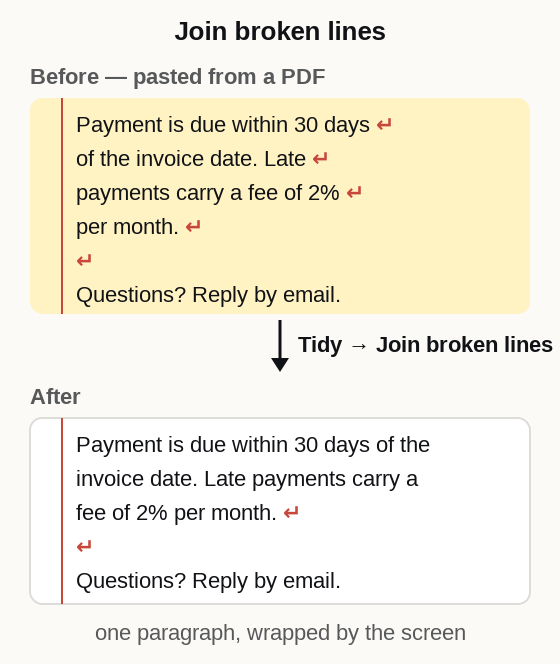
If the result looks wrong, Ctrl+Z puts everything back in one step. To clean only part of a note, select it first; Tidy then works on the selection alone.
Hyphenated words split across lines
Joining lines with a space turns e-⏎mail into e- mail. Whether the hyphen should go depends on the word: "e-mail" keeps it, "particu-lar" does not. That is why I never remove these with one blind click.
Open Find & replace (Ctrl+H), type - (a hyphen followed by a space) in Find and leave Replace with empty. Then step through with Find next and press Replace only where a word was really cut in two. In a typical page of a report I find two or three of these; checking them takes less than a minute. Watch out for real phrases like "pre- and post-tax", which also contain a hyphen and a space and must stay.
Japanese and Chinese text
Japanese and Chinese are written without spaces between words, so joining lines with a space would leave gaps in the middle of a sentence. Join broken lines checks the characters on both sides of each break: if both are Chinese, Japanese or full-width characters, it joins them with nothing in between. 日本語の⏎文章です becomes 日本語の文章です, and Excel の⏎使い方 becomes Excel の使い方. Where a Latin word meets the break, a space is used as usual.
Doing it in Word or Google Docs
In Microsoft Word the classic trick uses its special codes in Find and Replace, where ^p is a paragraph mark:
- Replace
^p^pwith a placeholder that never appears in the text, for example###. This protects the real paragraph breaks. - Replace
^pwith a single space. All the broken lines join. - Replace
###with^p^p. The paragraphs come back.
It works, but it is three replacements and easy to get wrong in the order. If the PDF used manual line breaks instead, the code is ^l.
Google Docs is harder. Its Find and replace accepts regular expressions, but Google's own help says that patterns like \n for newlines work only in Sheets, and that anything typed into Replace with in Docs is inserted as literal text (Docs Editors Help). For this job I paste into a plain-text editor first and move the clean text into Docs afterwards.
Problem and fix at a glance
| What you see | Why | Fix |
|---|---|---|
| Sentences break in the middle | A hard break after every printed line | Tidy → Join broken lines |
| Two or three spaces between words | Justified text, columns | Tidy → Remove extra spaces |
e- mail, particu- lar | Hyphenation at line end | Find - , check each, Replace |
| All paragraphs merge into one | No blank line between paragraphs in the copy | Ctrl+Z, add blank lines at paragraph ends, join again |
| A blank line after every line | Some viewers copy that way | Remove empty lines, add paragraph breaks, then join |
| "Page 3 of 12" mid-text | Header or footer copied with the body | Find it, delete it before joining |
| Search misses "file" | Ligature copied as one character | Replace fi with fi, fl with fl |
Once the text is clean, check its length with the counters at the bottom of the notepad, or select one paragraph to count only that part. If you will need the text again, Save as .txt, so you never have to clean the same PDF twice.
FAQ
How do I remove line breaks but keep paragraphs?
Make sure each paragraph ends with a blank line, then use Tidy → Join broken lines. It joins lines inside a paragraph with a space and leaves the blank lines between paragraphs alone.
Why does copied PDF text have line breaks?
A PDF places each printed line separately and has no real paragraphs, so the viewer adds a line break after every line when you copy.
How do I remove double spaces from text?
Use Tidy → Remove extra spaces: every run of spaces and tabs becomes one space and spaces at line ends are trimmed. Selected text only, if you select something first.
Can I undo Join broken lines?
Yes. Ctrl+Z (⌘Z on a Mac) undoes the whole action in one step.